IDEA → INSTRUCTION → IMAGE

GPT-6.1 Sol Image Generator

GPT-6.1 Sol is not available from our provider yet. Prompt refinement currently uses GPT-6 Sol.

Describe the image you want. Sol shapes the instructions; GPT Image 2.5 renders the result.

1 Your idea2 Sol's instruction3 Image 2.5
Loading the image workflow…
CLEAR ROLES, ONE WORKFLOW

What GPT-6.1 Sol Does — and What GPT Image 2.5 Does

Two models handle different parts of the job. You can inspect the instruction before spending credits on an image.

01 / TEXT & PLANNING

Sol shapes the instruction

Currently, GPT-6 Sol interprets a rough idea and turns it into a concrete visual brief: subject, framing, light, materials, style and mood.

  • It can reason about the requested composition.
  • It writes text for the image model.
  • It does not output image pixels.

The current GPT-6 Sol connection writes text, not image pixels.
02 / IMAGE RENDERING

GPT Image 2.5 makes the image

GPT Image 2.5 Flare renders the instruction into a visual result. The site's image editor can also use a reference photo for a later change.

  • Choose your image shape and quality.
  • Review or replace Sol's instruction first.
  • Results save to My Library as durable tasks.

If Sol is unavailable, your original idea still reaches the image model.

RECORDED TWO-MODEL OUTPUTS

Examples: From a Plain Idea to a Finished Image

Each example records a plain idea, GPT-6.1 Sol’s rewritten instruction, and the image rendered by GPT Image 2.5. Try the same idea to create a fresh result.

THREE MOVES, ONE RESULT

How to Generate Images for the GPT-6.1 Sol Generation

I.

Describe the idea

Start naturally. Name the subject, setting and any exact words that need to appear.

II.

Let Sol shape the instructions

Review the rewritten prompt. Copy it, edit your idea, or choose your original wording.

III.

Render with GPT Image 2.5

Select shape and quality, then create. Your image task and result stay in My Library.

SEE THE HANDOFF

One Idea, Step by Step

Follow the recorded handoff below: a short idea becomes a GPT-6 Sol instruction, then GPT Image 2.5 renders the result.

01 / PLAIN IDEA

A quick thought

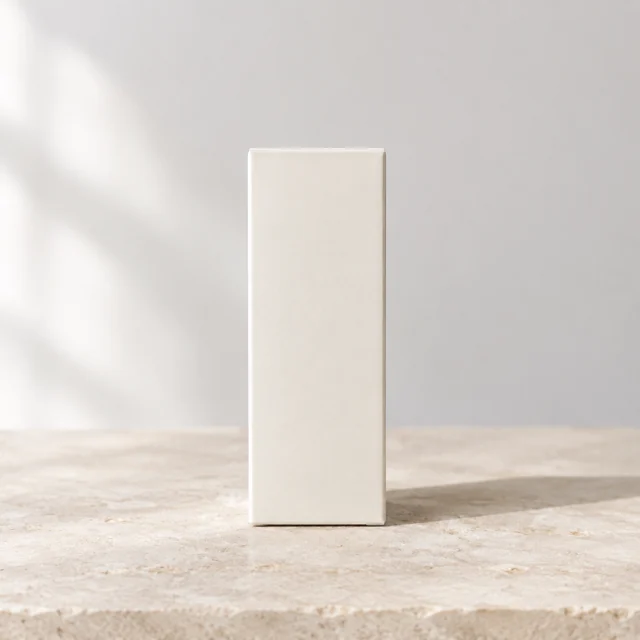
“A plain skincare box in soft daylight, no logo or lettering.”

02 / IMAGE INSTRUCTION

A renderable brief

A single unbranded skincare box stands upright on a pale stone surface, centered in a clean composition with ample negative space. Soft daylight enters from the left, casting a faint shadow. The box has a matte ivory finish with crisp folded edges and no logo, lettering, or graphics. Minimalist product photography with a calm, understated mood, shot straight on with a 50mm lens and shallow depth of field.

Recorded GPT-6 Sol rewrite used for the image shown here.

03 / FINISHED IMAGE

A visual result

Plain unbranded skincare box in soft window light — recorded Sol → Image 2.5 workflow result
Recorded GPT Image 2.5 Flare output · Low quality
YOUR QUESTIONS, ANSWERED

GPT-6.1 Sol Image Generator FAQ

Does GPT-6.1 Sol generate images?

No. Sol shapes text instructions, while GPT Image 2.5 renders the image. GPT-6.1 Sol is not available from our provider yet; this workflow currently uses GPT-6 Sol for prompt refinement.

What is the difference between GPT-6.1 Sol and GPT Image 2.5?

Sol interprets your idea and writes a visual instruction. GPT Image 2.5 takes that instruction and renders the pixels.

Is this GPT-6.1 Sol image generator free?

Prompt refinement does not deduct credits. Image generation follows the selected quality rate. A guest may get one square, Low-quality preview shared with the site’s guest image trial, subject to daily capacity. Google sign-in gives new accounts 12 starter credits.

How do I turn my idea into an image?

Describe your idea, review the instruction Sol shapes, then render it with GPT Image 2.5. You can keep your original wording instead.

Do I need a ChatGPT subscription to use this?

No. ImgKick runs this workflow with its own server-side model connections. A ChatGPT subscription is not needed.

What quality and size options are available?

Signed-in users can choose square, landscape or portrait and Low, Auto, Medium, High, Xhigh or Max quality. The current image prices are 4, 10, 10, 20, 35 and 70 credits respectively. A guest preview is square and Low only.

Can I edit a photo instead of creating one?

Yes. Use the ImgKick image editor to upload a photo and describe the change.

Where can I find prompt examples?

Browse the ChatGPT Image 2.5 prompt library for tested prompts and real ImgKick image previews.