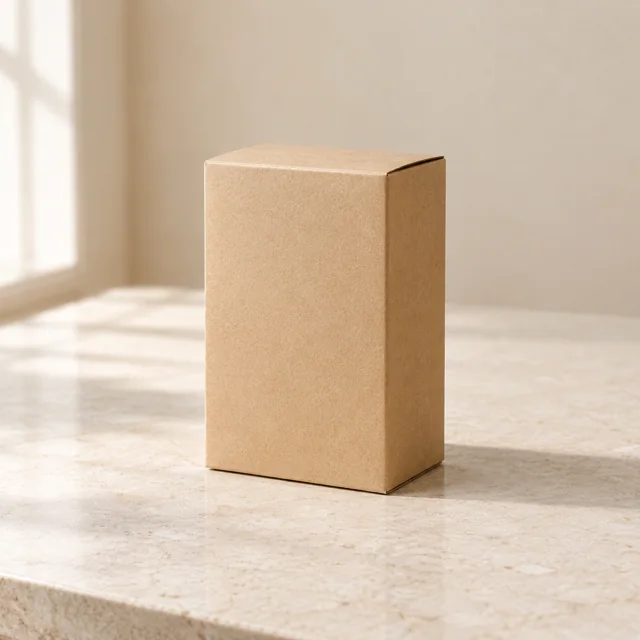
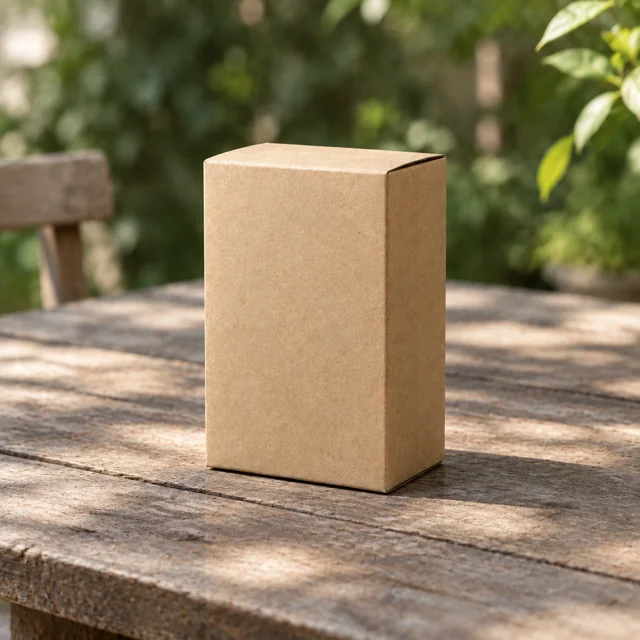
Editing a photo with the ChatGPT Image 2.5 editor
Use a reference photo when you want to keep a subject and change its surroundings, materials or presentation. A text-only prompt starts a new image; a reference gives the editor a visual starting point. This page uses GPT Image 2.5 Flare through ImgKick’s existing workspace. It is designed for instructions such as changing a product background, exploring a room finish or creating another version of a portrait. It does not offer a brush mask or a separate upscale button. Describe the desired change in words and review the resulting image before using it.
Prepare a reference that shows what matters
Choose a clear photo with enough detail around the subject you want to preserve. A tightly cropped or blurred source makes small features harder to assess. Upload PNG or JPEG files, up to four references, with a limit of 10 MB and 20 megapixels per file. Sign in with Google before uploading. When using several references, explain the role of each one: for example, use the first image for the product shape and the second for the background color. Avoid combining unrelated references without explaining how they should work together.
A repeatable image-to-image workflow
Start by writing a short instruction that names both the change and the details to keep. Choose square, landscape or portrait output and a quality setting, then submit one version. While the task runs, its status remains visible in your workspace. When it finishes, open the full-size result and inspect the subject, edges, shadows and any text. Use Edit with this image for a follow-up revision, or return to the original reference if the first result moved too far from your intention. Keep a useful version before experimenting with a more ambitious change.
Change a background without losing the subject
For a product image, describe the new surface, environment and lighting rather than simply requesting a better background. Ask to preserve the product shape, proportions and camera angle. A useful starting instruction is: Keep the blue cup and its handle unchanged; place it on a warm stone counter beside a softly lit window. Check contact shadows and reflections after generation, because they connect the subject to the new environment. If a label, logo or edge changes, make that the next focused correction. Reference-based editing cannot guarantee a pixel-identical cutout of the original subject.
Explore a different material or color
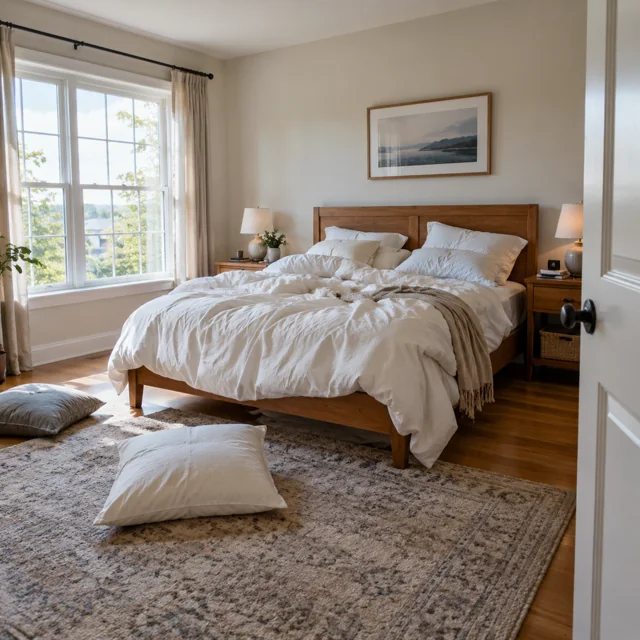
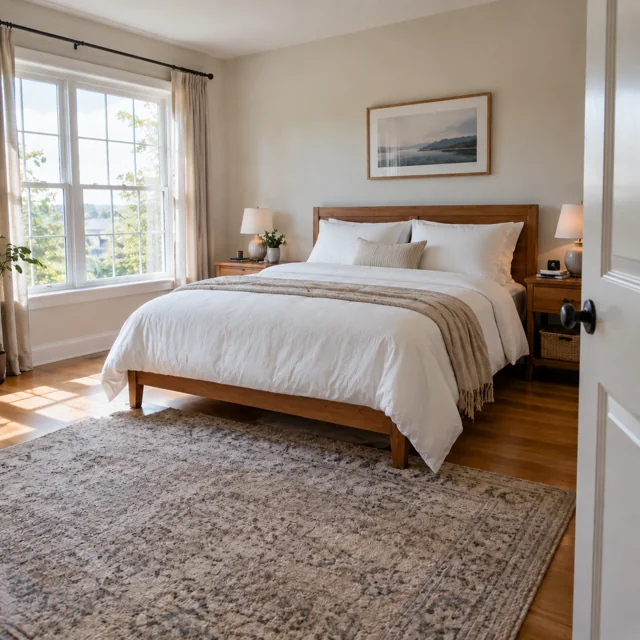
Material changes work best when you identify one object and describe its finish precisely. Distinguish matte paint from glossy enamel, brushed steel from polished chrome, or natural oak from dark walnut. Ask to retain the object’s dimensions, perspective and position. For a room, say which surface should change and which furniture should remain. An example is: Replace only the cabinet fronts with matte dark green paint, keeping the handles, countertop and daylight direction. Review highlights and joins at full size; a convincing overall color can still hide altered geometry or inconsistent reflections.
Keep a person recognizable across revisions
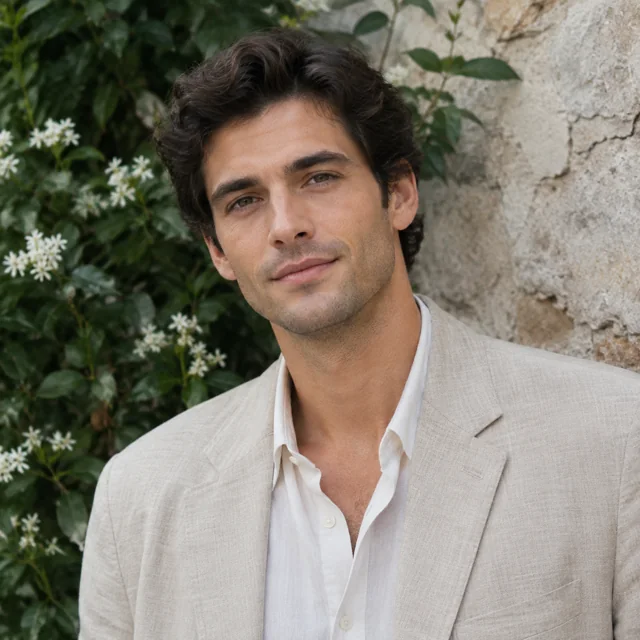
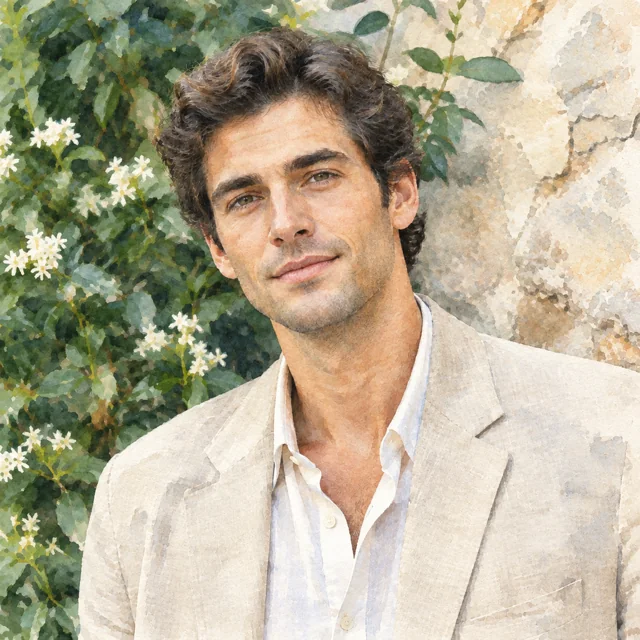
Use a reference that clearly shows the face, hairstyle and expression you care about. State which features should remain when requesting a new outfit or setting. Changing the pose, camera angle, clothing and background at the same time gives you more details to check. Begin with a smaller change and compare the eyes, facial proportions and distinctive features against the source. Better subject preservation is an announced model improvement, not an identity guarantee. Only upload photos you have permission to use, and do not treat a generated portrait as evidence of a real event.
Revise lettering and check every character
When changing text within an image, quote the exact short wording and describe its placement, size and style. Ask to leave nearby imagery unchanged. Short labels are easier to review than a dense paragraph, and contrast between text and background helps you judge the result. Inspect spelling, punctuation and spacing after every version. If the wording must be exact for packaging, a legal notice or a published advertisement, finish or verify it in a conventional design tool. The editor may redraw surrounding details while attempting a text change, so examine the entire affected area.
Write instructions that separate change from preservation
A helpful pattern is: Change this element, keep these details, and use this visual treatment. For example: Change the wall to warm white, keep the sofa and camera position, and preserve soft afternoon light. Another is: Replace the plastic bottle material with frosted glass, keep its silhouette and cap, and use subtle studio reflections. For a portrait, try: Keep the face and expression, change the background to a blurred garden, and retain the original crop. These are editable starting instructions, not promises that a specific output will appear. Adjust one clause after reviewing each result.
Choose quality and manage your credits
Low and auto quality cost 10 credits per image; medium costs 20, high 30, xhigh 40 and max 50. New accounts receive 50 welcome credits, which cover five low or auto images. The daily check-in grants 10 credits, not ten images. The guest trial supports one square text-to-image submission without references; photo editing requires sign-in. Credits are reserved when a task is accepted, spent when its output is saved and returned on confirmed failure. An uncertain provider result can remain held for review. Higher quality costs more and does not guarantee that every requested detail will be correct.
Formats, privacy and saved results
Output formats include 1024 × 1024, 1536 × 1024 and 1024 × 1536, subject to provider availability. Pick the aspect ratio for the place you intend to use the image, and leave space when a later crop is likely. Reference files are shared with the image provider through link-accessible URLs retained for up to seven days. Your account library holds completed images and favorites so you can return to a useful version. Review the Privacy and Terms pages before uploading sensitive material. Contact support@imgkick.com for account or permanent deletion requests under the published policy.
Review the result before sharing it
Look beyond the first impression. Check whether the intended edit happened, whether protected details stayed recognizable, and whether the image still makes visual sense. Product shapes, fingers, reflections, small lettering and repeating patterns deserve a closer look. If a change failed, simplify the instruction or use the original reference rather than repeatedly editing an already distorted result. For commercial work, verify rights in your source and output; generated content may not be unique and ImgKick does not guarantee copyright clearance. A useful result is one that fits your actual brief, not simply the most dramatic image.
Frequently asked questions
Is the ChatGPT image editor free to try?
New accounts receive 50 welcome credits, enough for five low or auto-quality images. Reference uploads require Google sign-in. The separate guest trial is text-to-image only. Usage and capacity limits apply.
Can I edit only one part of a photo?
Describe the element to change and the details to preserve. This is reference-based editing, not a brush-mask tool. Inspect the rest of the image because other details can change.
Can the editor keep the same face?
A clear reference and focused instruction can help preserve a subject. Identity consistency is not guaranteed, so compare facial details with the original after each edit.
Does a failed edit use credits?
Confirmed failed tasks return reserved credits. Uncertain provider results stay held while their status is checked. Avoid submitting a new task just because the first one is taking longer.
Can I use an edited image commercially?
Check permissions for your references and rights in the output. ImgKick does not guarantee uniqueness, copyright ownership or clearance of third-party rights. Review the Terms before commercial use.